
When signing up for Bybit, let’s take a detailed look at the fee discount benefits, along with KYC verification and security setup.

1. Bybit (Referral Code)
1-1. Access the Fee Discount Link
As with other exchanges, you can receive a trading fee discount when signing up for Bybit through a fee discount link.
When you access the link below and register, the Referral Code will be automatically filled in, so you don’t need to enter it manually.
This discount rate is currently the maximum benefit available for new users.
2. How to Get Bybit Trading-Fee Discounts (2 Methods)
To receive Bybit trading-fee discounts, you must sign up using an invitation link or enter a referral code during the registration process.
👉 Bybit Fee Discount Sign-Up Link
▷ Sign-Up Benefit: 20% discount on trading fees
▷ Fee Discount Link: (☜ Click)
▷ Referral Code: YVDN87K (You must enter the referral code correctly to receive the 20% trading fee discount.)
 If you sign up by downloading the app first or registering directly on the website without using the fee discount link, the Referral Code field will be blank.
In this case, you must manually enter the referral code YVDN87K during registration to ensure the discount is applied.

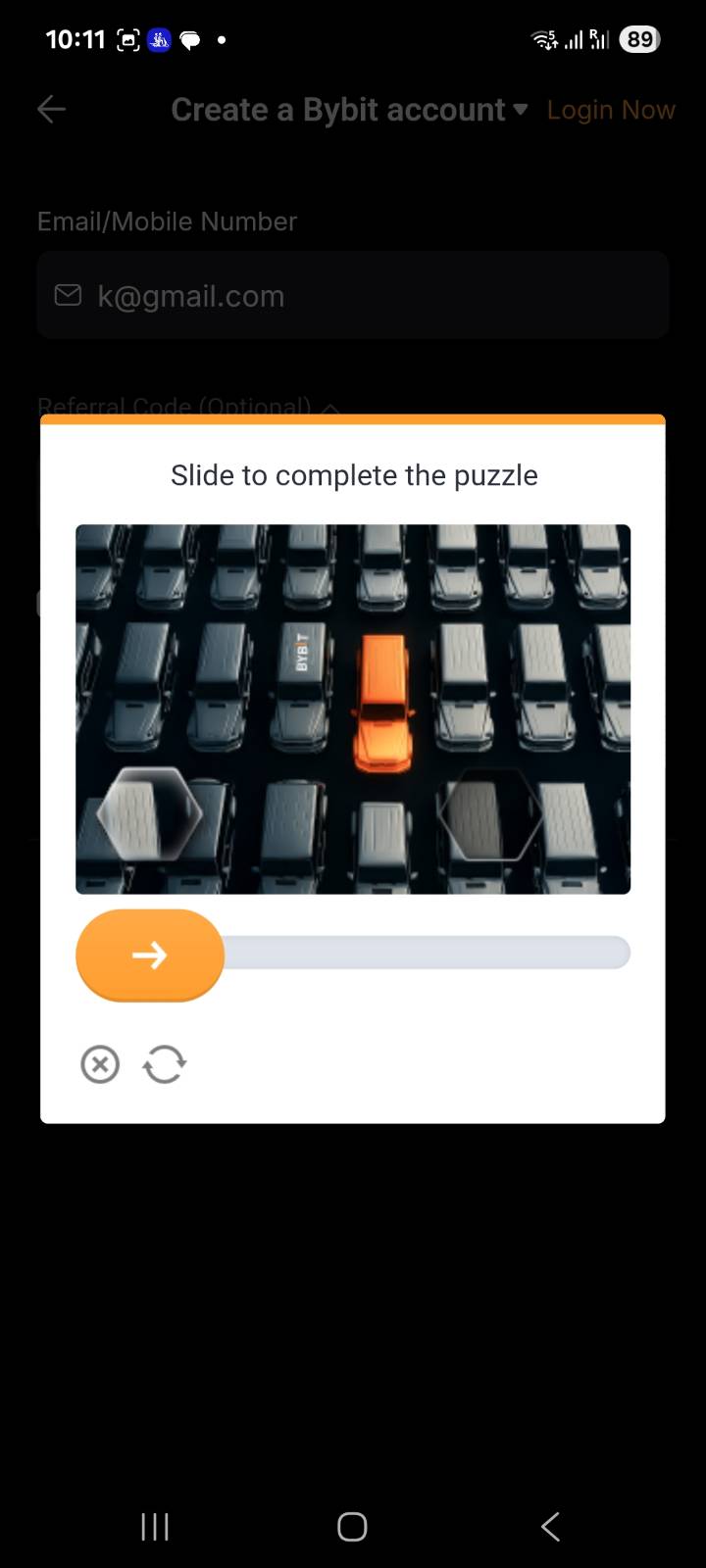
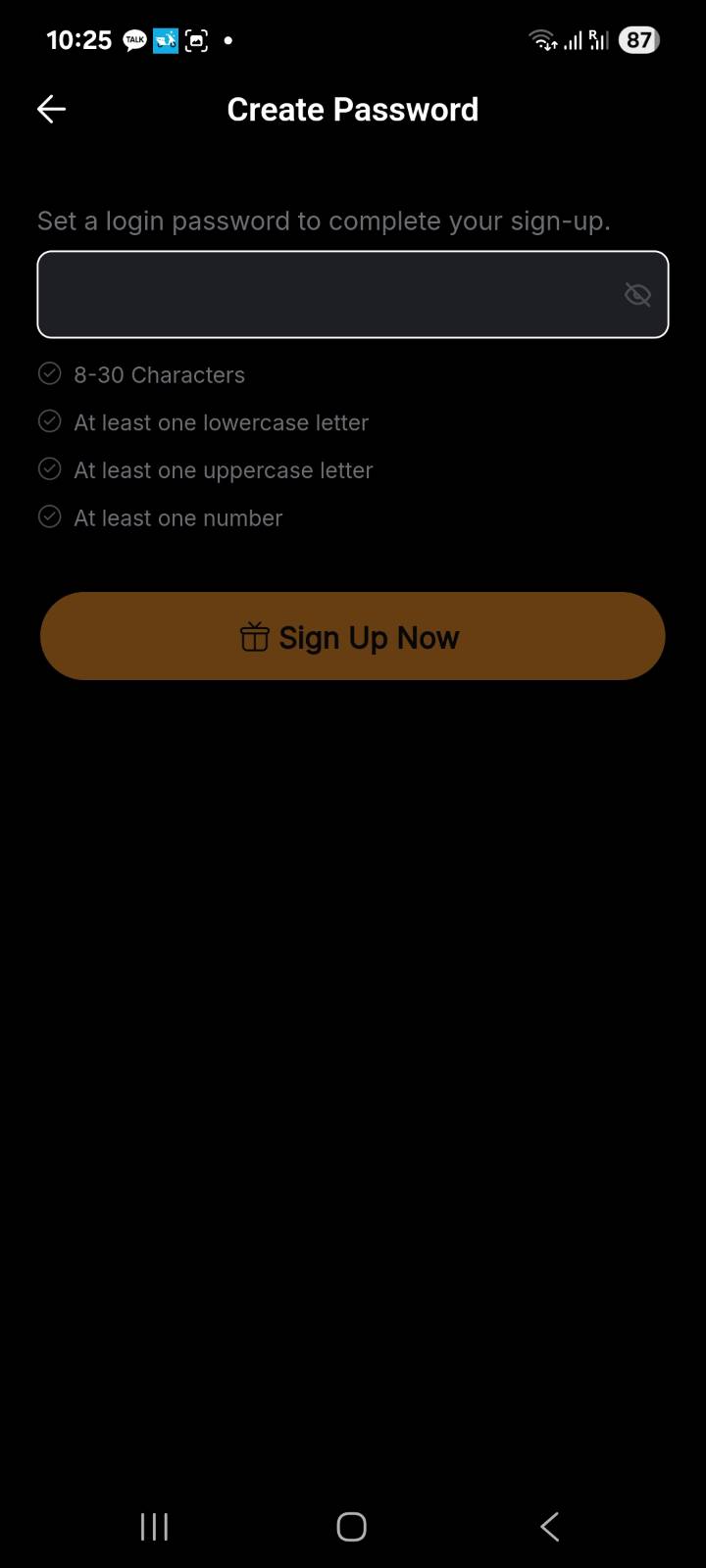
 1-2. Account Creation (Sign-Up)
To begin, enter the email address you’d like to use as your ID and set your password.
8–30 characters
At least one uppercase letter
At least one lowercase letter
At least one number
If the password still doesn’t meet the requirements after including these, try adding a special character.
After setting your email and password, click “Get my welcome gifts.” A puzzle will appear—drag the blue arrow to move the triangle into the empty triangular space to complete the puzzle.
Now, Bybit will send a verification code to your email. Enter the code to create your account.

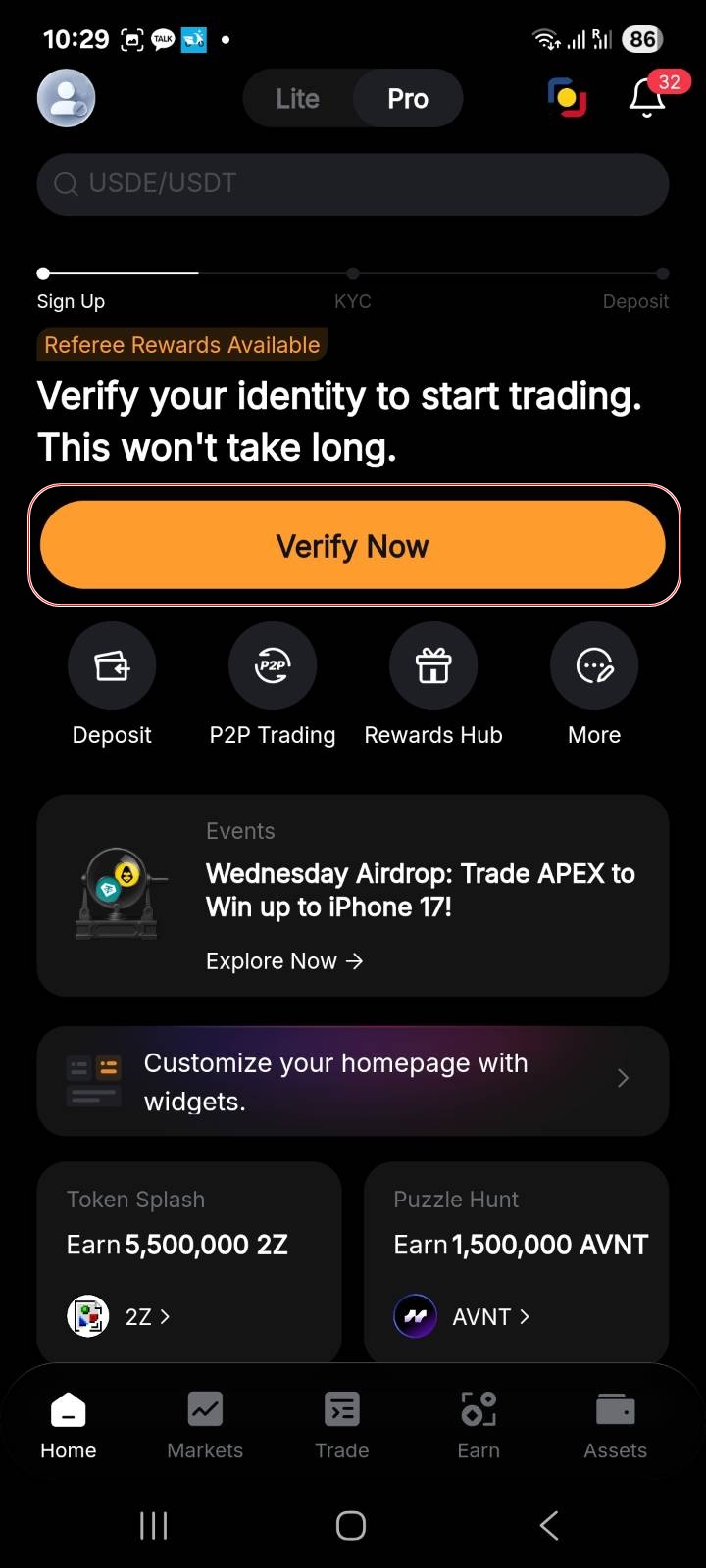
1-3. KYC Verification (ID + Face Check)
On the Verify Your Identity screen, Korea is automatically selected.
If another country is displayed, change it to Korea and choose the ID you will use for KYC (identity verification).
I selected my driver’s license, but you can proceed with any valid ID you have.
Next, select “All countries except USA” as your current residence and click Continue.
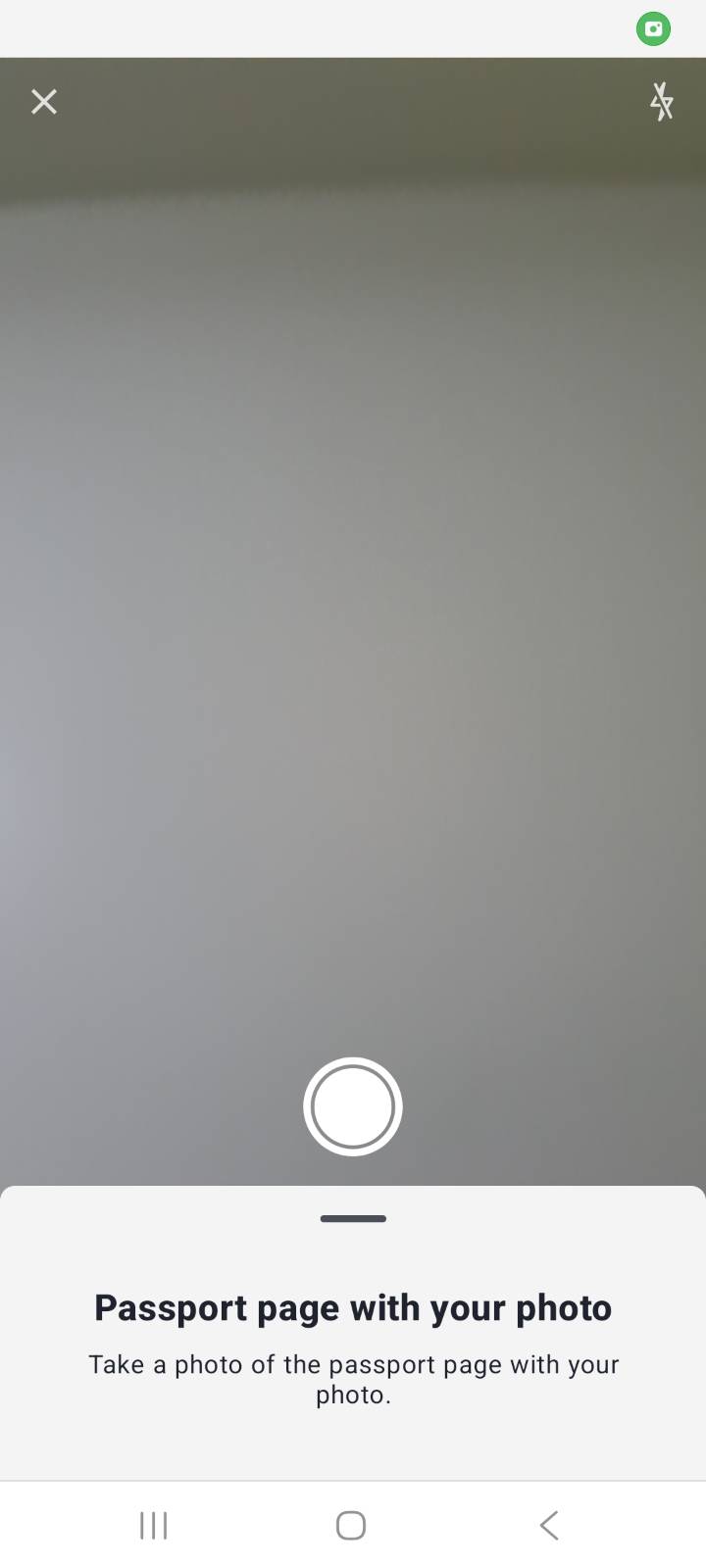
After that, the camera will activate, allowing you to take a photo of your ID.
Once the photo is taken, confirm “Document is readable” and upload it.
At this stage, the system will prompt you to complete facial verification.
During my verification process, the background caused a recognition issue.
As a result, I retook the photo using a plain wall while keeping my eyes on the camera.
Depending on the exchange, you may be asked to look at the camera, nod your head, or perform other simple movements.
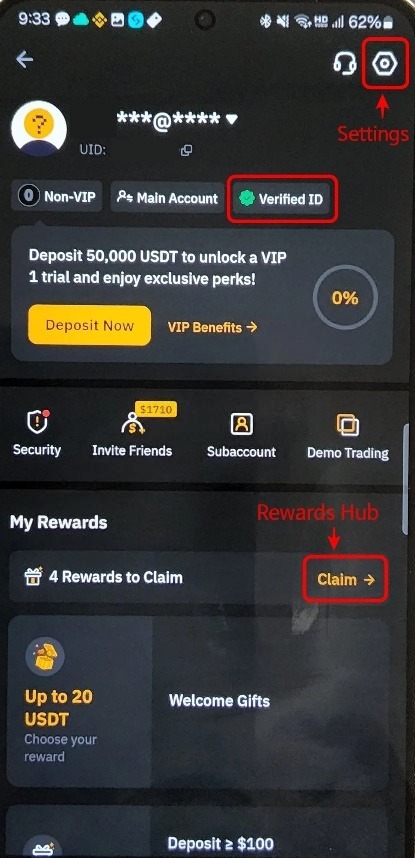
The verification was approved within about five seconds and marked as Verified ID.
Finally, click Claim under My Rewards to open the Rewards Hub.
There, you can receive 20 USDT for signing up and additional USDT after making a deposit.
Make sure to claim these rewards after registration.
3. Security Settings – Google OTP
This is the most important setting after signing up. To prevent your valuable account from being hacked, security settings are essential. The most commonly used strong security method is Google OTP, so let’s go over how to set it up.
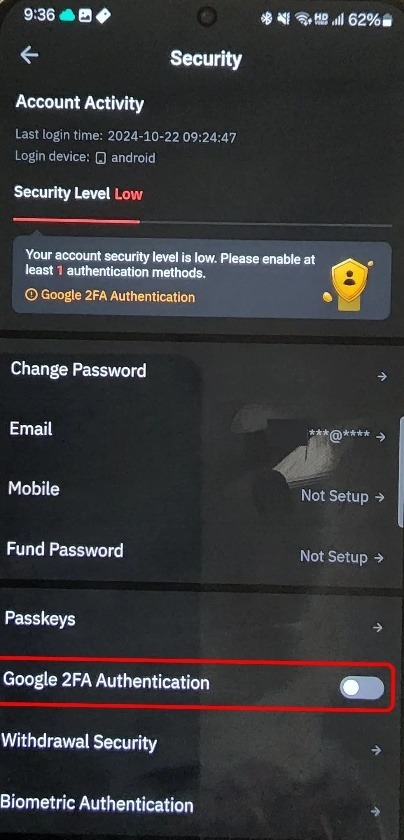
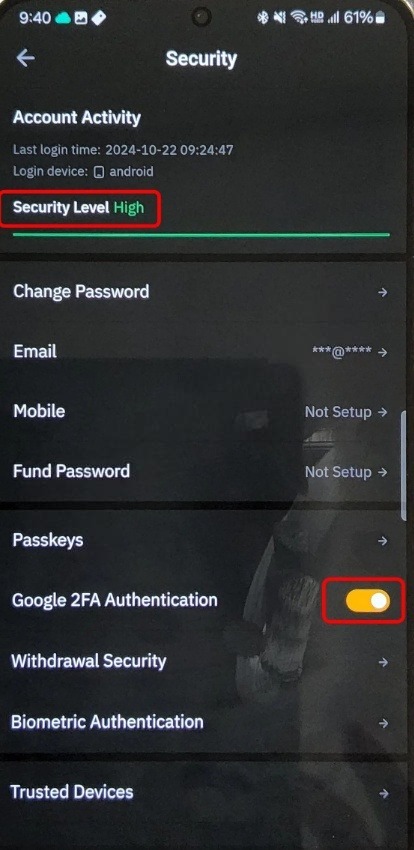
As shown in the second picture above, click the Settings icon, then go to Security and select Google 2FA Authentication.
Bybit will email you a verification code. Check your inbox and enter the code to continue.
Next, you will be prompted to install Google OTP. Search for Google OTP in the app store appropriate for your phone and install it.
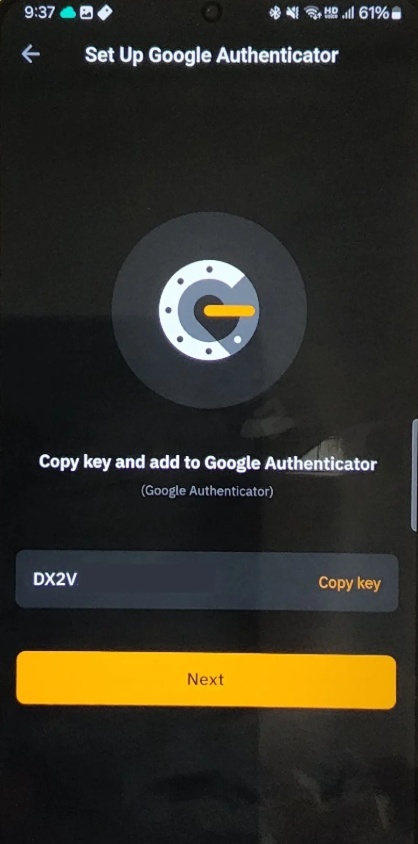
The 16-digit number shown under Copy key is extremely important, as anyone who knows this number can register your Google OTP. Keep it completely private. Also, note that if you lose it, you may encounter problems when re-registering, so make sure to store it safely.
Open the Google OTP app, tap the “+” button, and select Enter a setup key.
① Account name: A name you can easily recognize (for example, Bybit (abcd@gmail.com))
② Key: Paste the 16-digit key provided by the Bybit app
After entering this information, tap Add.
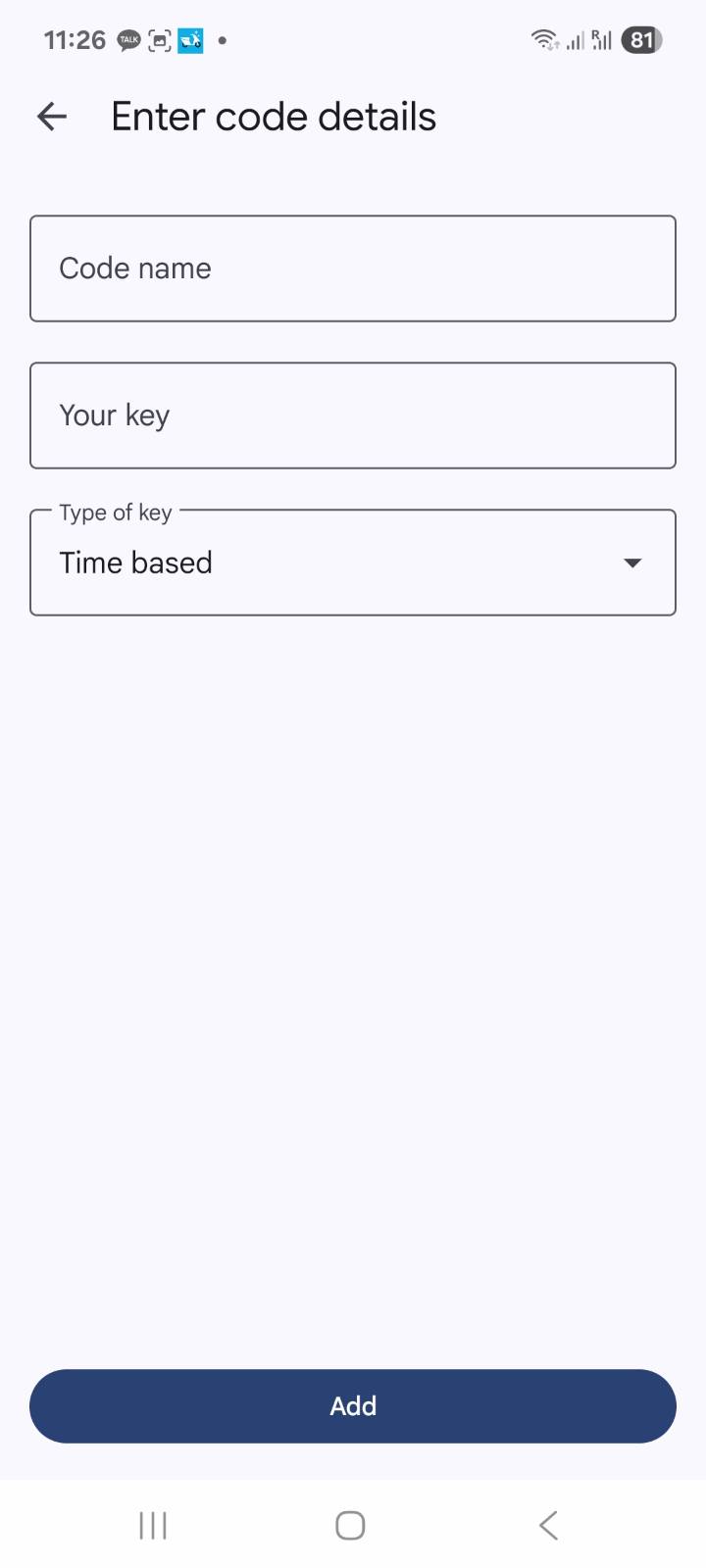
An OTP 6-digit code will then appear in the Google Authenticator app for Bybit. This code is an important security verification number required for logging in and for deposits and withdrawals.
Once this setup is complete, you will see that the Security Level is set to High.
We have now gone over how to sign up for Bybit. Since the guide was created using actual photos of the mobile phone screen, anyone can easily follow along and complete the registration.
Next, we will cover how to deposit funds and how to trade on Bybit.
Tags -
Posts Tagged with Binance
How to Sign Up for Bybit and Set Up Security (20% Fee Discount)

Cut-Fee
We provide a wide range of information related to cryptocurrencies, including exchange introductions and sign-up guides, as well as detailed instructions on how to use exchanges such as Binance, OKX, Bybit, and Bitget, covering registration, deposits and withdrawals, and trading methods.
View All Categories
Notice
Facebook | Twitter
Recent Comments